★★★★★
Works great I only need yardage at a glance
Carl — handicap 18 — United States
Front / middle / back distances on 42,000+ courses worldwide — no phone needed.
Want the product walkthrough? See our golf GPS watch guide.
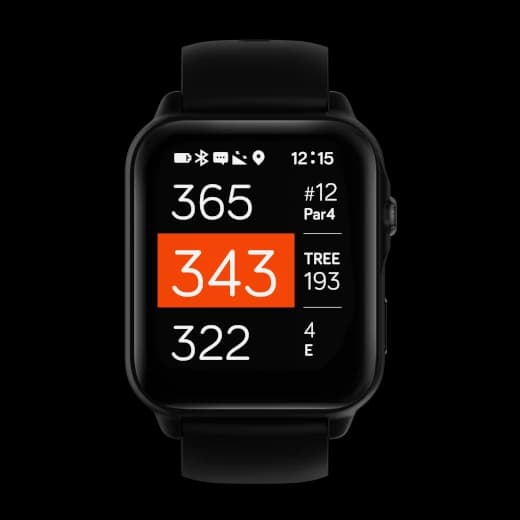
Preview how distances, hazards, and green view appear on the watch.
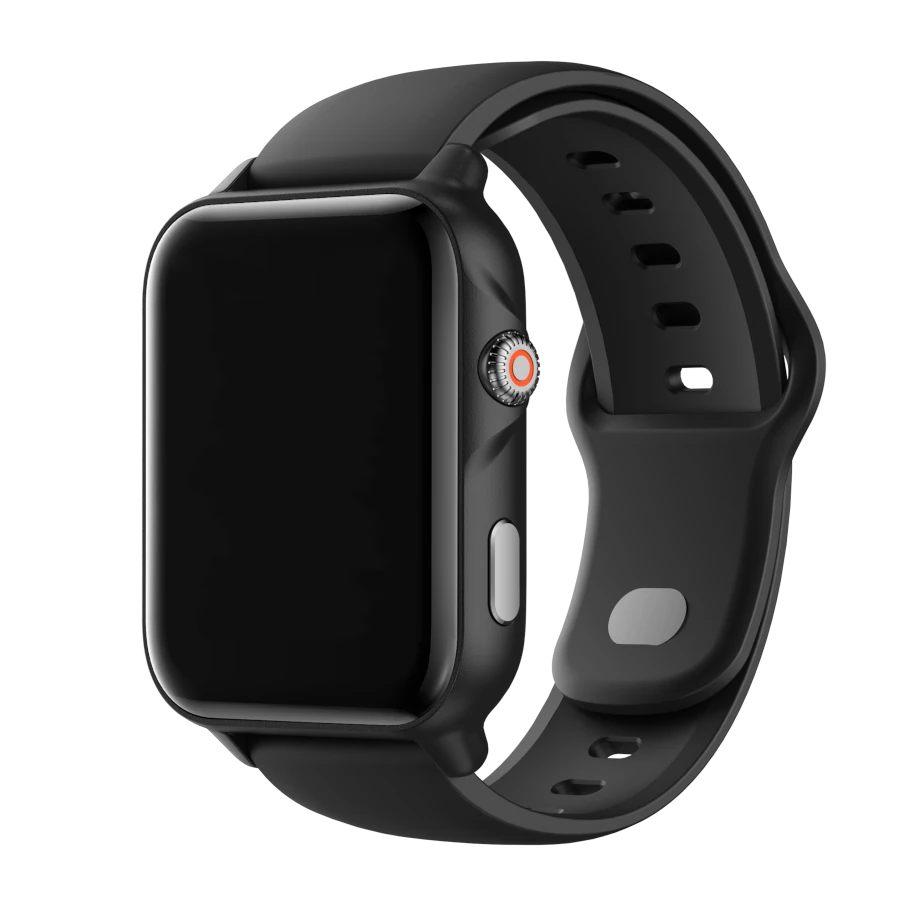
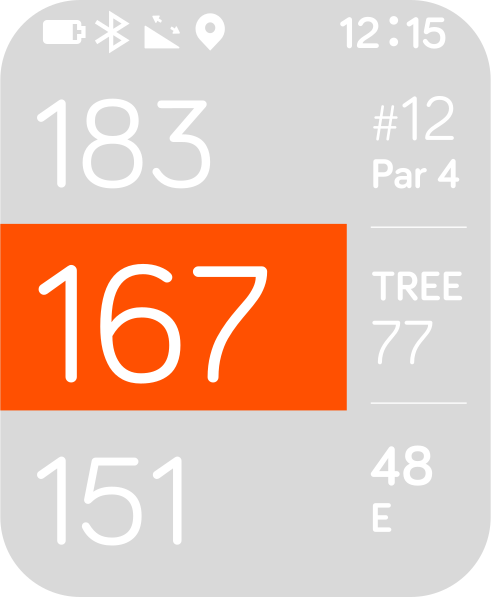
Bright, clear, and readable in real playing conditions.
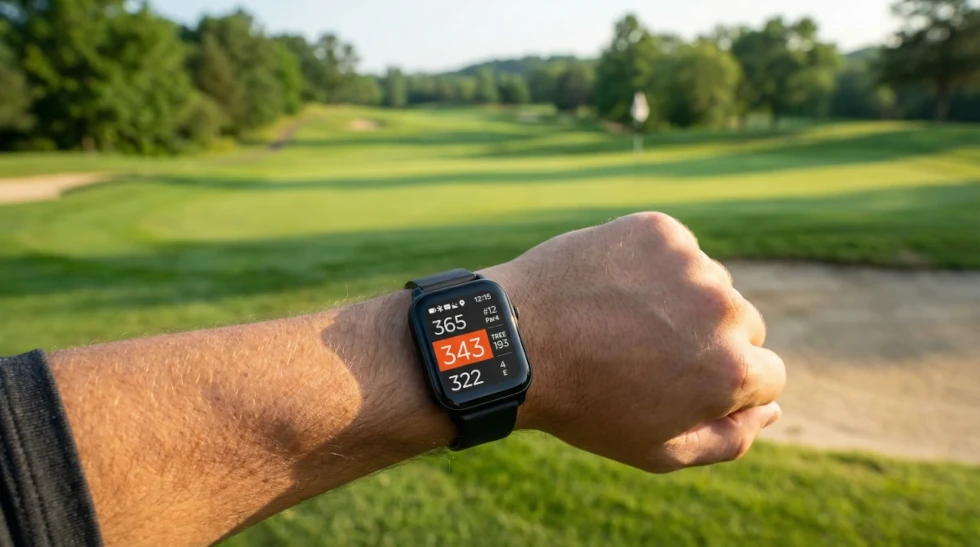
Shot on course. Screen shown as-is.
Search 42,000+ courses worldwide instantly.
If you do not see your course, you can still request an update. Most updates are turned around within about 5 working days.
Search results will appear here after you submit the form.
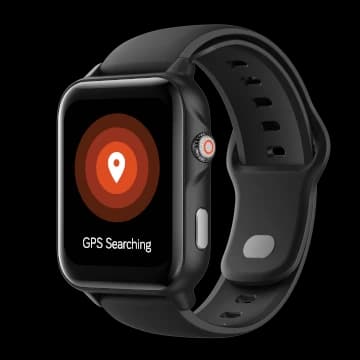
Free golf course updates, forever.
Easily lasts 2 full 18-hole rounds.
Charge once, play all weekend.
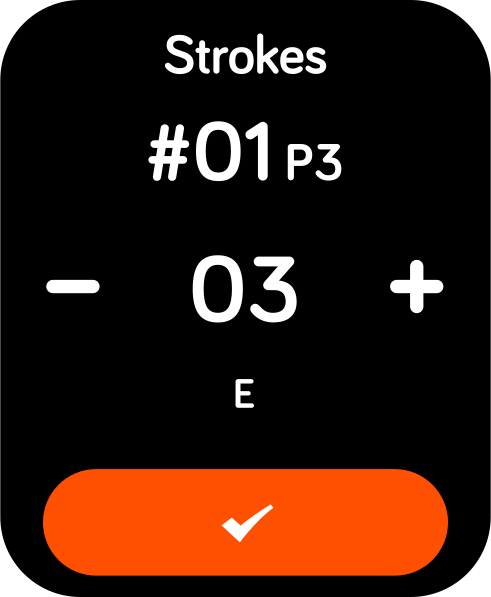
Track how far you hit each shot and keep score — only if you want to.
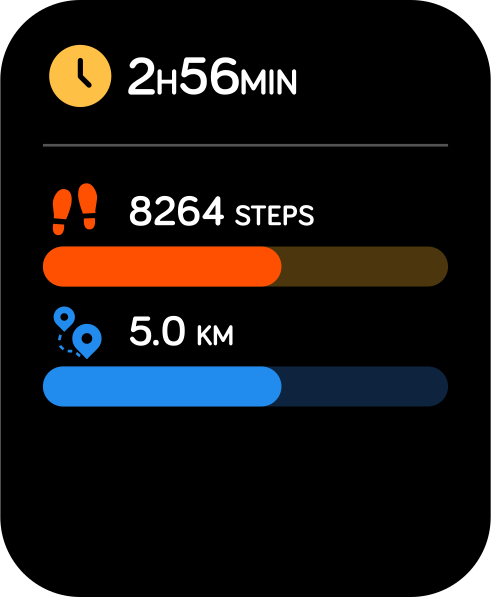
Automatically tracks playing time, steps, and walking distance — in the background.
Built by a team of golfers and tech enthusiasts with over 30 years of experience in golf technology products. We focus on making the on-course experience simple, fast, and reliable.
We sell direct to keep the price fair and reinvest in what matters: better reliability, clearer usability, and long-term support.
No subscriptions. No distractions. Just what you need on the course.
Short feedback from golfers after real rounds.
Works great I only need yardage at a glance
Does the basics really well. Front, middle, back, that’s all I need.
No subscription, no setup. Turn it on and play.
Simple, fast, and accurate. Shot distance is more useful than I expected.
Readable in full sunlight. I stopped pulling out my phone mid-round.
Exactly what I want on the course. Clear distances, no distractions.
Every review is moderated before it is published.
Yes. NAVO W1 comes with over 42,000 courses worldwide preloaded on the watch. You do not need to pair it with an iPhone, Android phone, or the NAVO app to access those courses or play golf.
Use the course search to double-check a club before you buy.
The watch does not search for nearby courses automatically. From the clock screen, press the top-right crown-style button once and confirm that GPS Searching appears.
If a course is in the current database but not on your watch, pair with the optional NAVO app and install it through Update Golf Courses.
Request an update only if the course is not listed or its information is incorrect.
First go outdoors, press the top-right crown-style button once from the clock screen, and confirm that GPS Searching appears. The watch does not start course search automatically.
If the course still does not appear, search the NAVO course database.
If the course is listed but not on your watch, install it through Update Golf Courses in the NAVO app.
Send us a request only if the course is not listed or its information is incorrect. Include:
First, make sure you are outdoors in an open area. From the clock screen, press the top-right crown-style button once and confirm that GPS Searching appears.
If the nearby course list still does not appear after more than five minutes, open the NAVO app and go to Menu > My Device > Check Updates. Install the latest watch update.
When the update is complete, open the watch menu by swiping from right to left, tap the gear icon for Settings, scroll to the bottom, and tap Reset.
After the watch restarts, remain outdoors with a clear view of the sky and start the GPS search again. This update-and-reset process has resolved reported cases where updating alone did not restore a fast GPS connection.
No.
Course updates are free for life.
Please contact our customer service team through the support form.
More than two full rounds of golf on a single charge,
with up to 12 days of standby.
When you are not playing golf, swipe from left to right to open the quick settings screen. The battery icon is shown in the top-left corner.
When you are playing golf, the battery icon is also shown on the main golf screen, in the top-left corner.
From the clock screen, swipe from left to right to open the Quick Settings panel.
From the clock screen, swipe from right to left to open the main menu, then tap the gear icon to open Settings.
Select Watch Face, swipe through the available options, then tap the watch face you like to select it.
If the display changed from digital numbers to an analog-style face with hands, follow these steps and select a digital watch face.
First, open Settings, scroll down to Time Settings, and check the DST setting. DST adds +1 hour to the GPS time.
The watch time does not change immediately when you turn DST on. Start golf mode and wait for a GPS signal. The +1-hour adjustment is applied when the watch receives the GPS time.
If the time is still incorrect, set Auto Time to OFF, then press Manual Time and follow the steps on the watch. When the watch is paired with a phone, it automatically syncs the date and time from the phone and overwrites the watch settings, including manually set time. If the synced time is wrong, check the phone date and time settings.
NAVO W1 comes with the watch and a magnetic USB charging cord.
No.
NAVO works independently on the course. All 42,000+ courses are already preloaded, so your phone is not needed while you play.
An optional app is available if you want to update your watch, manage courses, or review your game data.
No. NAVO W1 comes with more than 42,000 courses preloaded, so the app is not required to find courses or play golf.
The optional app is recommended for course updates, firmware updates, automatic warranty registration, and faster support.
The NAVO app is optional for playing golf and recommended for updates and account services:
Your NAVO W1 warranty can be automatically associated with your account when you sign in to the NAVO app and connect your watch.
We recommend connecting your watch after purchase to simplify future support and warranty verification.
Check that the displayed hole is correct and GPS has settled outdoors. During a round, press the crown and choose Settings > Golf Settings > Slope Mode > OFF, then confirm.
Compare from the same position, in the same units, to the same target. The middle distance is to the center of the green, which can differ from the flag.
If switching Slope off fixes the discrepancy, report the Slope issue. Otherwise, install any available course update and report remaining errors with the course name, location, and affected holes.
Press and hold the crown button on the upper-right side of the watch. If the watch is already on but the display is asleep, double-tap the screen or press either button to wake it.
The closest hazard abbreviation and distance appear in the right-middle area of the main golf screen.
Tap that area, or swipe right (left to right) from the distance screen, to open Hazards. Full hazard names are already shown in the Hazards view. Front is the near edge; Carry is the distance needed to clear the hazard.
| Hazard Abbr | Hazard Full Name |
|---|---|
| Bk | Bunker |
| CBk | Cross Bunker |
| LBk | Left Bunker |
| CLBk | Cross Left Bunker |
| RBk | Right Bunker |
| CRBk | Cross Right Bunker |
| Wt | Water |
| CWt | Cross Water |
| LWt | Left Water |
| CLWt | Cross Left Water |
| RWt | Right Water |
| CRWt | Cross Right Water |
| DogL | Dog Leg |
| Tree | Tree |
| Q1 | Fairway section 1 |
| Q2 | Fairway section 2 |
| Q3 | Fairway section 3 |
| Q4 | Fairway section 4 |
| Q5 | Fairway section 5 |
| 1EF | Fairway section 1 end |
| 2SF | Fairway section 2 start |
| 2EF | Fairway section 2 end |
| 3SF | Fairway section 3 start |
| 3EF | Fairway section 3 end |
Everything you need, nothing you don't.